How It Works
Photo import uses OCR (Optical Character Recognition) combined with AI to read text from images and convert it into a structured recipe.
Image Capture
Take a photo with your camera or select an existing image from your photo library.
Text Recognition (OCR)
Peel scans the image and extracts all visible text—printed or handwritten.
AI Processing
Our AI interprets the text and organizes it into a title, ingredients list, and instructions.
Free tier: You get 5 credits to try photo imports. Upgrade to Premium for unlimited.
Step-by-Step Guide
1. Tap Add and select "From Photo"
Go to the Recipes tab, tap the Add button, and choose "From Photo".
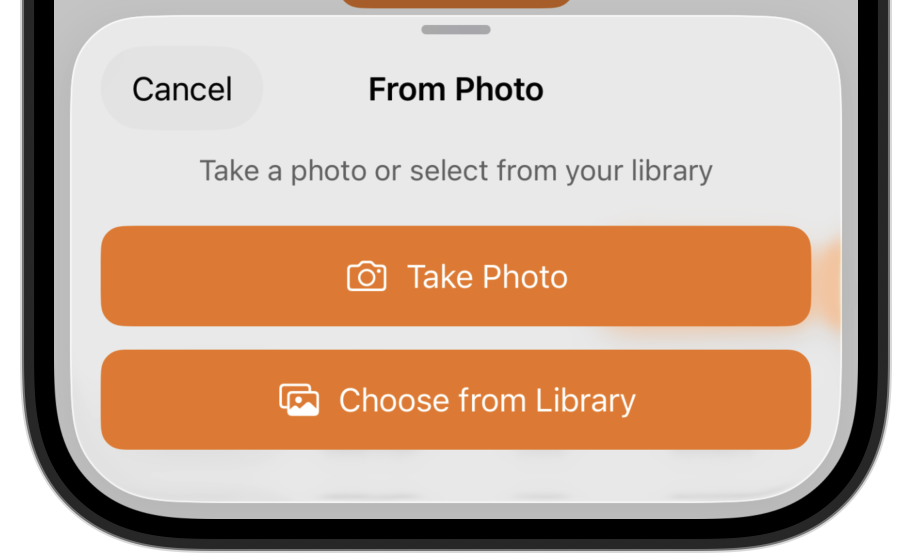
2. Choose your source
Opens your camera to snap a new picture.
Select an existing photo or screenshot.
3. Capture or select the image
For best results when taking a photo:
- Use good lighting (natural light works best)
- Keep the page flat to avoid shadows
- Make sure all text is readable
- Include both ingredients AND instructions in the frame
4. Review and edit
Review the extracted recipe. OCR isn't perfect, especially with handwriting, so check for any errors.
Tips for Best Results
Good lighting is essential
Natural daylight or bright, even artificial light. Avoid shadows falling across the text.
Keep it flat and steady
Lay the recipe flat on a table. Hold your phone steady or prop it up to avoid blur.
Fill the frame
Get close enough that the recipe fills most of the image, but make sure all text is included.
Grandma's recipes: Photo import is perfect for digitizing handwritten family recipes. Even if the OCR isn't perfect, it gives you a starting point to edit and preserve those precious recipes.