The Big Picture
In Peel, you can add recipe ingredients to your grocery list from two places: your recipe library and your meal plan. These are tracked separately, and the grocery list keeps track of where each item came from.
Why track sources? You might add the same recipe to your library and a meal plan. Tracking sources lets you manage ingredients independently—and keeps everything in sync.
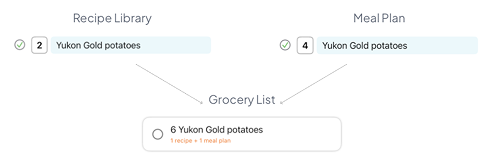
Same ingredient, different sources → grouped together in your grocery list
Understanding Sources
Every ingredient in your grocery list has a source—where it came from. Peel tracks two types of sources:
Ingredients added from a recipe in your library (the Recipes tab). These are tied to the recipe itself, not any specific meal plan.
Ingredients added from a recipe within a meal plan. These are tied to that specific meal plan—if you delete the meal plan, these items are removed from your grocery list.
If you add the same ingredient from both places, they'll appear as the same item in your grocery list—grouped together with multiple source labels.
Adding Ingredients to Your List
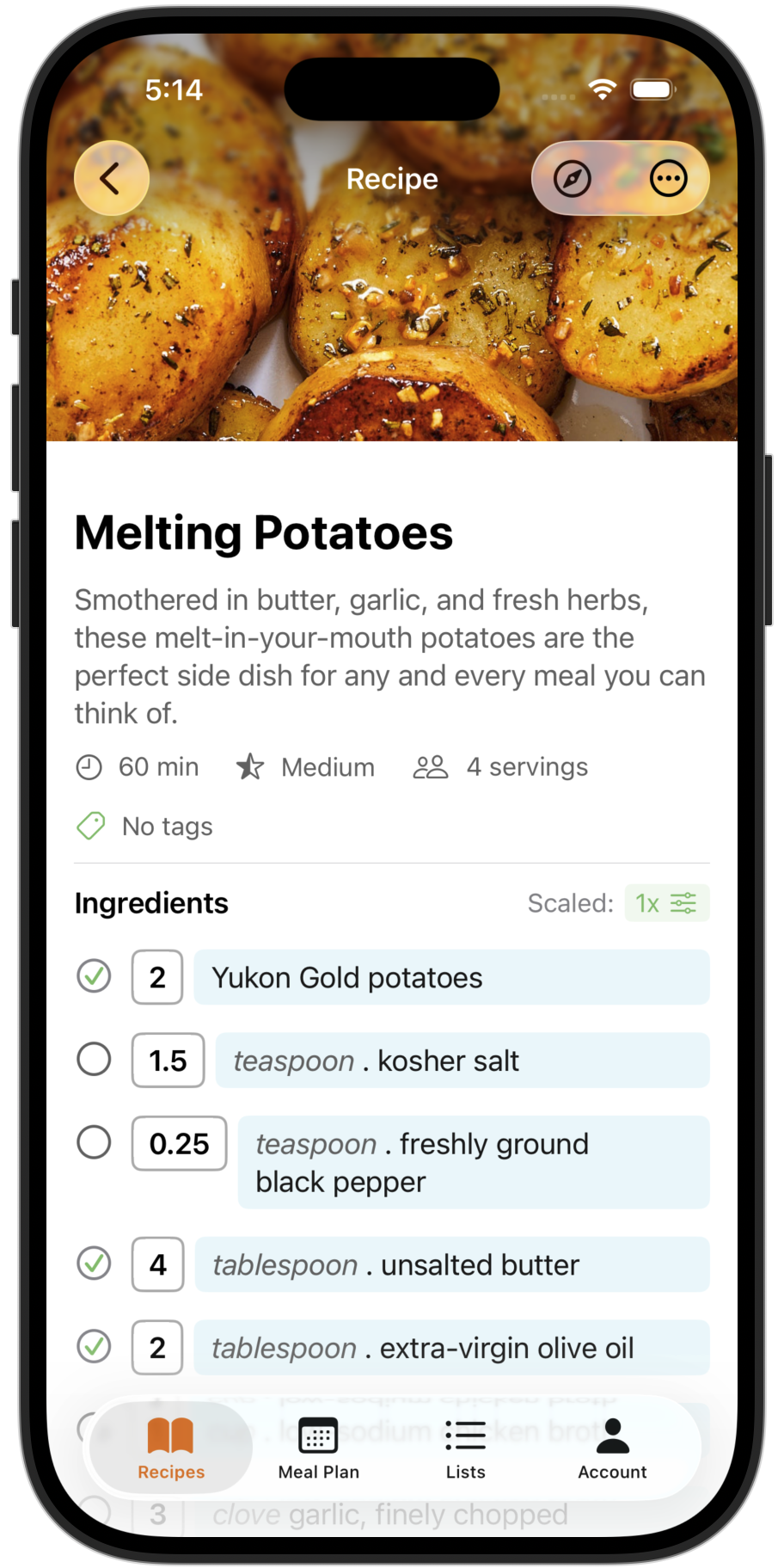
You can toggle ingredients on or off from either location. The process is the same:
Open a recipe
Either from your library (Recipes tab) or from within a meal plan
Go to the ingredients section
You'll see toggles next to each ingredient
Toggle ingredients on
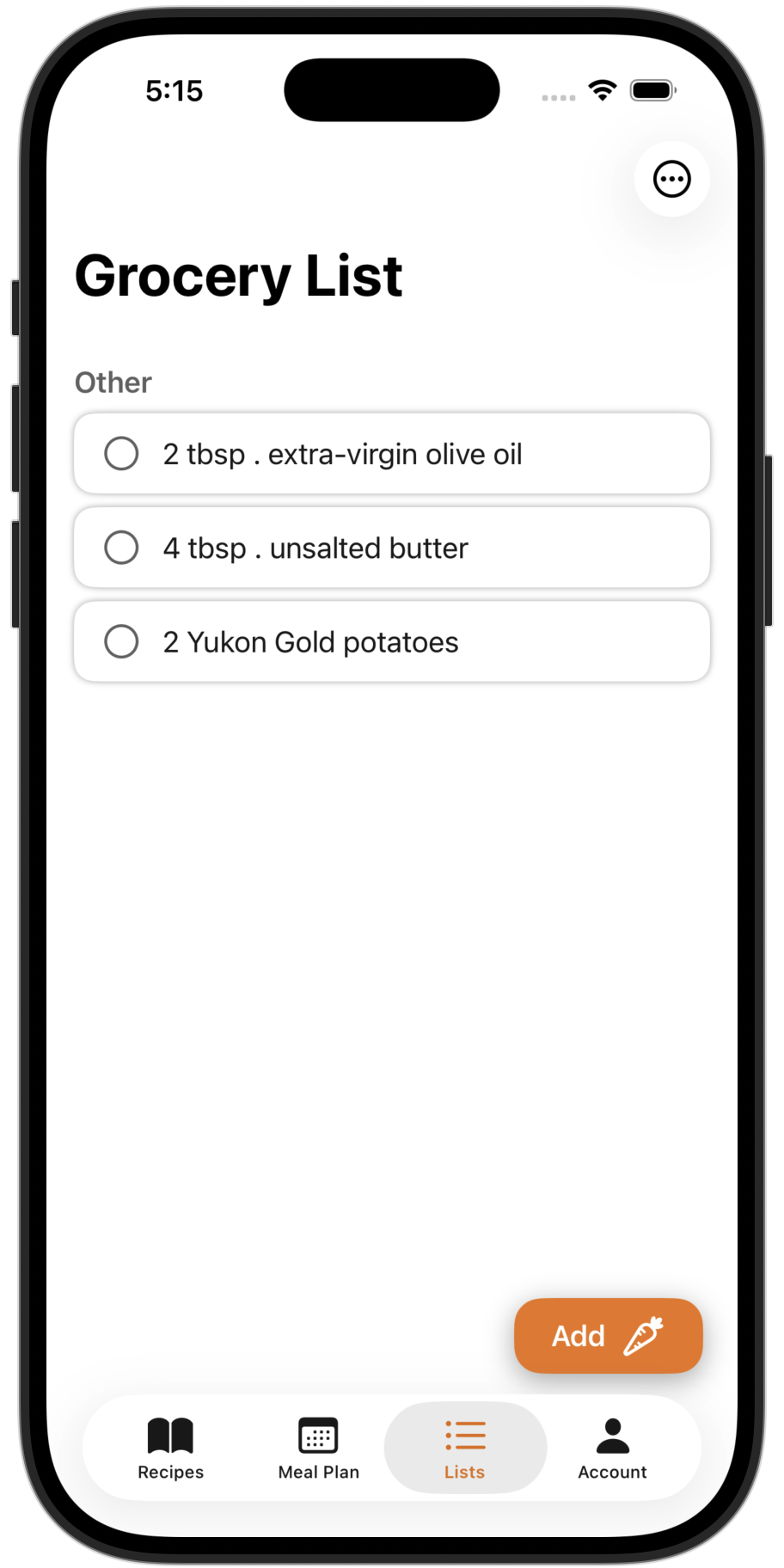
Selected ingredients are immediately added to your grocery list
Live Syncing
Here's where it gets useful: the sync works both ways.
Toggle on in recipe → appears in grocery list
When you turn on an ingredient toggle, it's instantly added to your grocery list with the appropriate source.
Clear from grocery list → toggle turns off
When you check off or remove an item from your grocery list, the corresponding toggle in the source recipe turns off automatically.
Practical example: You're at the store and check off tomatoes from your list. When you get home and open any recipe that had tomatoes toggled on, they'll already be off—no manual updating needed.
This two-way sync means your recipes, meal plans, and grocery list always stay in agreement. You'll never have to manually sync anything.
A Real Example
Let's say you have a "Spaghetti Bolognese" recipe in your library. Here's how syncing works in practice:
Scenario 1: Adding from your library
You open Spaghetti Bolognese from your Recipes tab and toggle on "Ground beef" and "Spaghetti". These appear in your grocery list labeled as coming from the recipe.
Scenario 2: Also adding from a meal plan
Later, you add the same recipe to this week's meal plan. You open it from the meal plan and also toggle on "Ground beef." Now your grocery list shows ground beef with two sources—one from the library, one from the meal plan.
Scenario 3: Shopping
At the store, you check off ground beef from your grocery list. Back in the app, you'll see the toggle is now off in both places—your library recipe and your meal plan recipe.
Tip: If you only want to track ingredients once, just add them from one place. Most people either add from their library (for standalone cooking) or from their meal plan (when planning a week of meals)—not both.