Peel is the best free meal planning app with a home screen widget on iPhone. The widget shows your flexible meal pool for the week and the status of your grocery checklist at a glance, it works on the free plan with no subscription, and it is built to be readable at a glance instead of squeezing a full calendar into a tiny grid. AnyList is the better pick if you want a grocery-first widget with Siri and Apple Watch support. Here is how the main options compare.
If you are an iPhone user who wants a free, lightweight meal planning app that also has good home screen widgets, you have probably already learned the hard part: plenty of apps advertise a widget, but most of them cram a week's worth of meal names into 8pt type you can barely read. A widget only earns its spot on your home screen if you can glance at it and instantly know what you planned. That is a design problem, not a checkbox.
I built Peel and I have tested every meal planning app that ships an iOS widget. This guide ranks them by what the widget actually shows on the home screen, not by whether one exists. For the broader category, see our full 2026 meal planning app comparison.
Meal planning app widgets compared
Four apps make up almost every serious answer to this search. This table covers what each widget shows on the home screen, the platform, the free tier, and the one thing each does best.
| App | What the widget shows | Platform | Free tier | Best for |
|---|---|---|---|---|
| Peel | Flexible meal pool for the week plus grocery checklist status | iOS, iPadOS | Yes, widget included free | Free meal pool + grocery list at a glance |
| AnyList | Grocery list items and next recipe, Siri and Apple Watch access | iOS, iPadOS, watchOS, Web | Yes, some sync features paid | Grocery-first widget with Siri and Watch |
| Samsung Food | Planned meal for the day and quick shortcuts | iOS, Android, Web | Yes, full planner free | Cross-platform households |
| Plan to Eat | Day-by-day calendar view of the week's plan | iOS, Android, Web | 14-day trial only | Week-by-week calendar planners |
Why a home screen widget makes meal planning actually stick
The whole point of planning your week is that you do not have to think about dinner every night. But if your plan lives inside an app you have to open, tap into, and scroll through, you stop checking it. The plan goes stale. By Thursday you are ordering takeout because opening the app felt like one step too many.
A good widget removes that step. You unlock your phone, and the plan is right there next to your other apps. You see what is in the pool for the week and whether you still need to grab something at the store. No tapping. That is the glanceability principle, and it is the difference between a plan you follow and a plan you abandon.
Here is the catch most apps miss. Glanceable does not mean "show everything smaller." A widget that renders your seven-day calendar as a 4x7 grid of tiny cells is technically complete and functionally useless. You cannot read it, so you open the app anyway, so the widget saved you nothing.
What to look for in a meal planning app widget
A few things separate a widget you keep from one you delete after a day:
- What it shows. Does it surface the meals you plan to cook and what you still need to buy, or just an app icon with a label?
- Readable at a glance. Can you understand it in one second, or do you have to squint?
- Size options. Small, medium, and large widgets should each show a sensible amount, not the same content shrunk down.
- Lock screen vs home screen. Home screen widgets carry more detail. Lock screen widgets are best for a single next-up item.
- Free or paywalled. Some apps gate the widget behind a subscription. That matters if you are trying to keep costs at zero.
Peel: best free meal planning widget for iPhone
Peel's home screen widgets shipped in version 2.2 and are available on the free plan. The approved way I describe them is simple: see your meal plan and grocery list at a glance with new home screen widgets. The widget shows two things that actually matter day to day, the meals in your flexible pool for the week and the status of your grocery checklist.
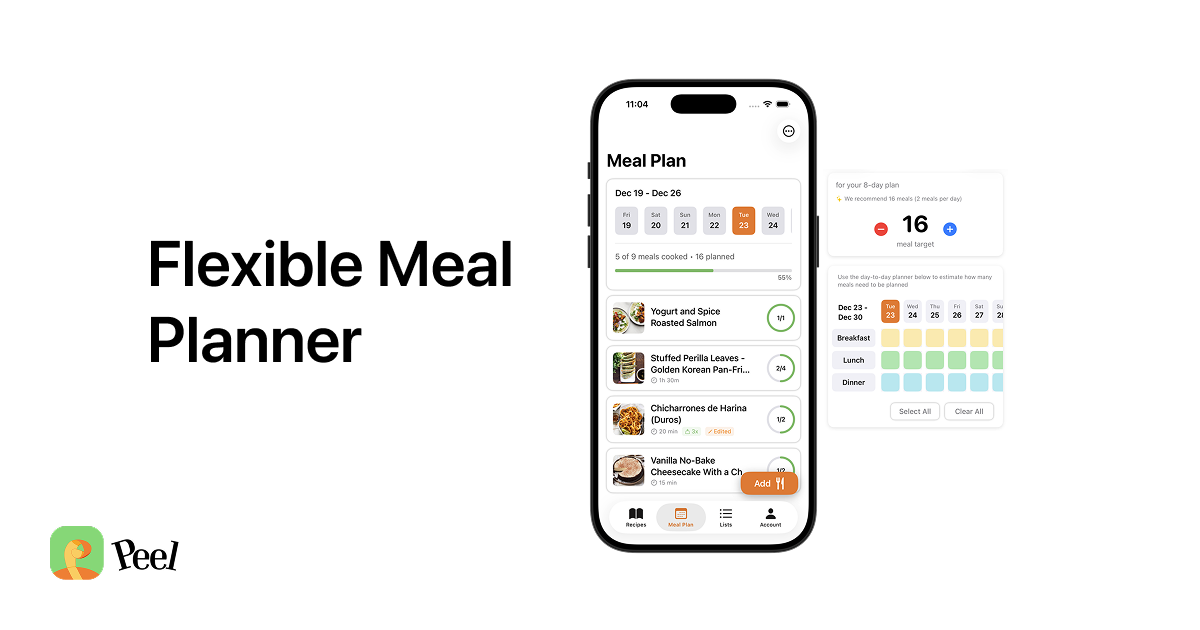
That pool design is the reason the widget reads cleanly, and it comes from a frustration I never solved with other apps. I would plan meals Monday through Sunday, feel good about it, and then a random event would come up Thursday night. Or we would skip Tuesday lunch. The plan would fall apart, and it did not just feel inconvenient. It felt like failure. So I built a pool instead. You fill the pool with options, shop for it, then choose what to cook the day of. No slot has to be filled. The pool flexes. A calendar does not.
On the home screen, that difference is everything. A rigid day-by-day grid has to show seven labeled slots to make sense. A pool just shows the meals you are choosing from, which fits a widget beautifully. You glance, you see three or four options for the week and how much of your shopping is done, and you get on with your day. For more on that approach, read our flexible meal planning guide.
Peel's free tier is genuinely free: unlimited recipe storage, unlimited web imports, the flexible meal pool, and an automatic grocery list generated from your pool. Social imports from TikTok, Instagram, and YouTube run on a pool of credits that refreshes every week. The widget itself costs nothing.
I will be honest about the limits, because trust matters more than hype. Peel is iOS and iPadOS only. There is no Mac widget and no Apple Watch app. If those are dealbreakers, one of the alternatives below fits better. But for a free widget that shows both your meal pool and your grocery list on the iPhone home screen, Peel is the only option that does that combination at zero cost.
App Store rating: 4.9 out of 5 as of August 2026.
AnyList: best grocery-first widget with Siri and Apple Watch
If your center of gravity is the shopping list rather than the plan, AnyList has the strongest widget ecosystem here. Its home screen widget surfaces your list, it integrates with Siri so you can add items by voice, and it has a proper Apple Watch app so your list is on your wrist in the store. That is a real advantage Peel does not match.
The honest trade-off is on the planning side. AnyList is a great grocery list with weak meal planning. Different job to be done. If you want a widget mainly to check off groceries and occasionally glance at a next meal, AnyList is excellent. If you want the widget to show a flexible week of meals you are choosing between, that is not where AnyList is strongest.
Samsung Food: best free widget for cross-platform households
Samsung Food (formerly Whisk) has a free planner and a curated recipe library that is genuinely deep, and it runs on iOS, Android, and the web. Its widget leans toward showing the planned meal for the day plus a couple of shortcuts. If your household mixes iPhones and Android phones, the cross-platform sync is the reason to pick it.
One gap worth naming. Samsung Food has a good curated recipe library and works across platforms, but there are no social imports at all. If you save from TikTok, it cannot help you. And some features lean on the Samsung ecosystem. For a widget-plus-plan setup on a mixed-device household, though, it is a solid free choice.
Plan to Eat: best widget for week-by-week calendar planning
Plan to Eat is built around the classic day-by-day calendar, and its widget reflects that. If you genuinely think in a Monday-through-Sunday grid and want the home screen to mirror it, this is the closest match to that mental model. It is a well-made, long-running app.
Two caveats. First, it is subscription-only after a 14-day trial, so it is not part of the free conversation. Second, the calendar format is exactly the thing that made me build a pool instead, a grid that punishes you the moment a night goes sideways. If that structure works for your life, Plan to Eat does it well. See our roundup of free meal planning apps for the zero-cost alternatives.
How to set up Peel's home screen widget on iPhone
Adding the widget takes about fifteen seconds:
- Download Peel and add a few recipes to your meal pool for the week.
- Long-press an empty area of your home screen until the apps start to jiggle.
- Tap the plus button in the top corner of the screen.
- Search for Peel and select it from the list.
- Swipe to choose a size, small, medium, or large, then tap Add Widget.
- Drag it where you want it and tap Done.
From then on, your meal pool and grocery checklist are on your home screen. Plan the week once, then cook from what is already in front of you.
Frequently asked questions about meal planning app widgets for iPhone
Which meal planning app has the best iPhone home screen widget?
Peel has the best free iPhone home screen widget for meal planning. It shows your flexible meal pool for the week and the status of your grocery checklist at a glance, so you can see what you planned without opening the app. AnyList has a stronger widget ecosystem overall thanks to Siri and Apple Watch support, but it is grocery-first with lighter meal planning.
Does Peel have a free home screen widget on iPhone?
Yes. Peel's home screen widgets shipped in version 2.2 and are available on the free plan. The widget shows your meal pool and grocery checklist. No subscription is required to use it.
What does the Peel widget actually show on the home screen?
The Peel widget shows the meals in your flexible pool for the week and the status of your grocery checklist. It is designed for glanceability, so it displays what you plan to cook and what you still need to buy, rather than a cramped day-by-day calendar grid.
Does Peel have a lock screen or Apple Watch widget?
Peel's widgets run on the iPhone and iPad home screen. Peel does not have an Apple Watch app or a Mac widget. If Apple Watch access is a priority, AnyList is the stronger choice for a grocery-first widget.
How do I add the Peel widget to my iPhone home screen?
Long-press an empty area of your home screen until the apps jiggle, tap the plus button in the top corner, search for Peel, choose the widget size you want, and tap Add Widget. Position it where you want and tap Done.
A widget is a small thing, but it changes the daily rhythm of cooking. When your plan is on the home screen, you use it. When it is buried in an app, you forget it. Peel puts your flexible meal pool and grocery checklist where you will actually see them, for free, on iPhone and iPad.
Published August 2026.