What is a "Kitchen"?
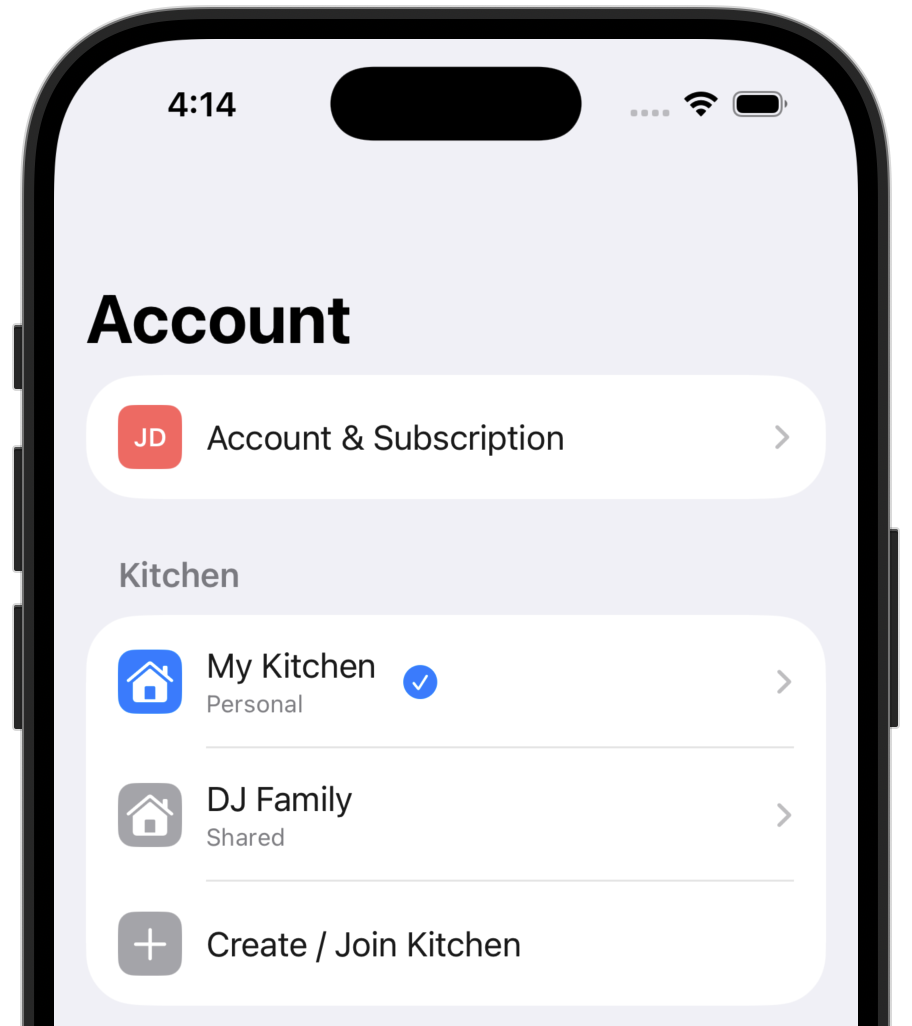
In Peel, a Kitchen is your recipe workspace. Think of it as a digital cookbook where you store recipes, plan meals, and manage grocery lists.
When you sign up, a Personal Kitchen is created for you automatically. It's completely private and only you can see what's inside.
With Premium, you can create a Shared Kitchen and invite one other person to join. Everything in a Shared Kitchen syncs between both members in real-time: recipes, meal plans, grocery lists, and collections.
Kitchen Types
Personal Kitchen
FreeYour private recipe space. Only you can see and edit recipes here.
- • Unlimited recipes
- • Basic meal planning
- • No sharing
Shared Kitchen
PremiumCollaborate with your partner, family, or roommates in real-time.
- • Invite household members
- • Real-time sync
- • Shared grocery lists
Tip: You always have access to your Personal Kitchen, even with Premium. Use it for recipes you want to keep private.
Member Roles
Shared Kitchens have three roles:
Owner
Full control. Can invite members, edit everything, and delete the kitchen. There's always one Owner per kitchen.
Member
Can add, edit, and delete recipes, meal plans, and grocery lists. This is the default role when joining a kitchen.
Viewer
Read-only access. You become a Viewer if you leave a kitchen, get removed, or if the Owner's Premium subscription expires. You can still view all the recipes, but you can't make changes.
Creating a Kitchen
To create a new Shared Kitchen:
Go to Account → Kitchen Settings
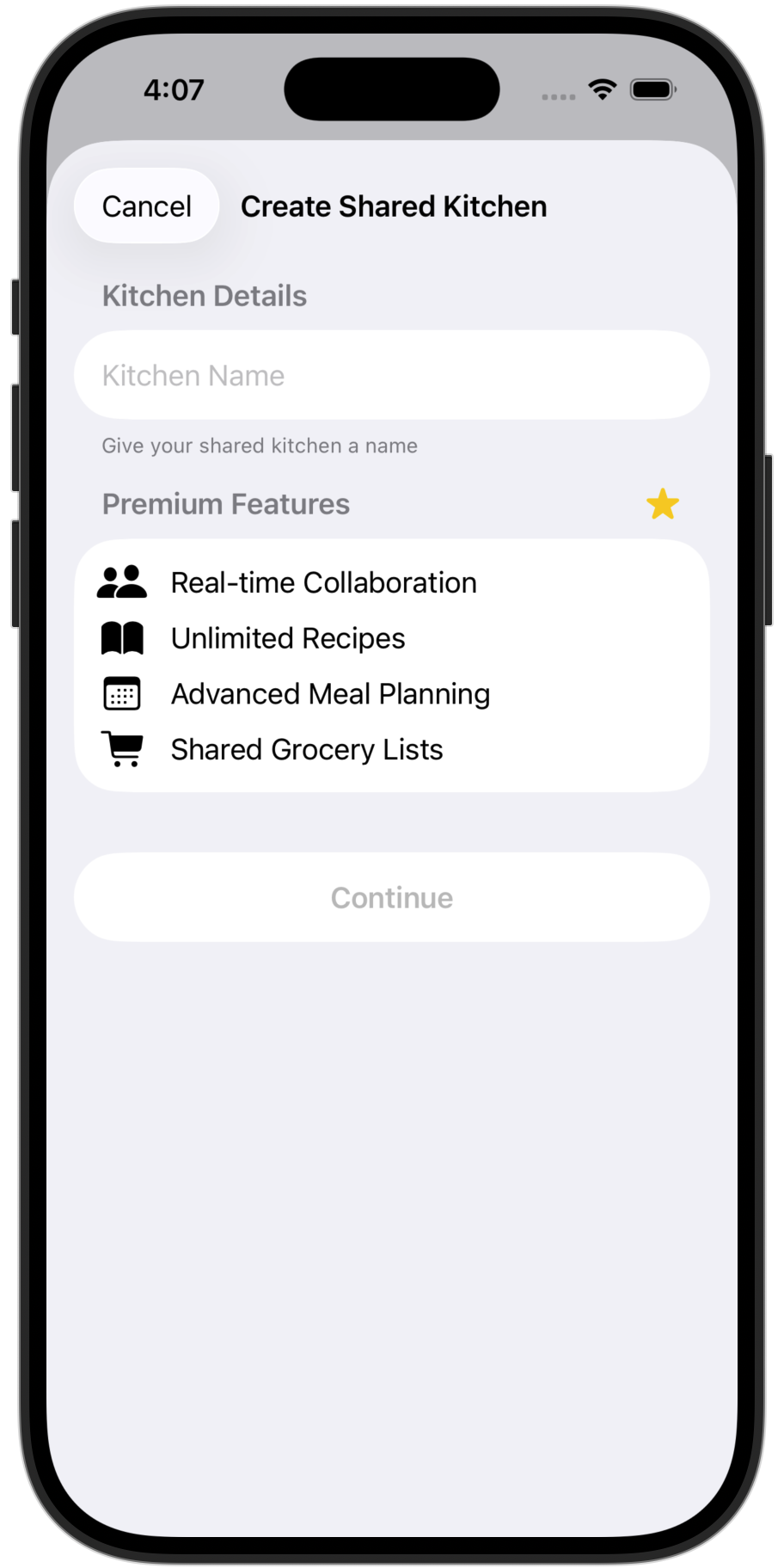
Tap "Create Kitchen"
Give your kitchen a name and you're ready to invite members
Premium required: Creating a Shared Kitchen requires Premium. Only the Owner needs Premium; invited members can use Peel free.
Inviting Members
Owners can invite new members using an invite code:
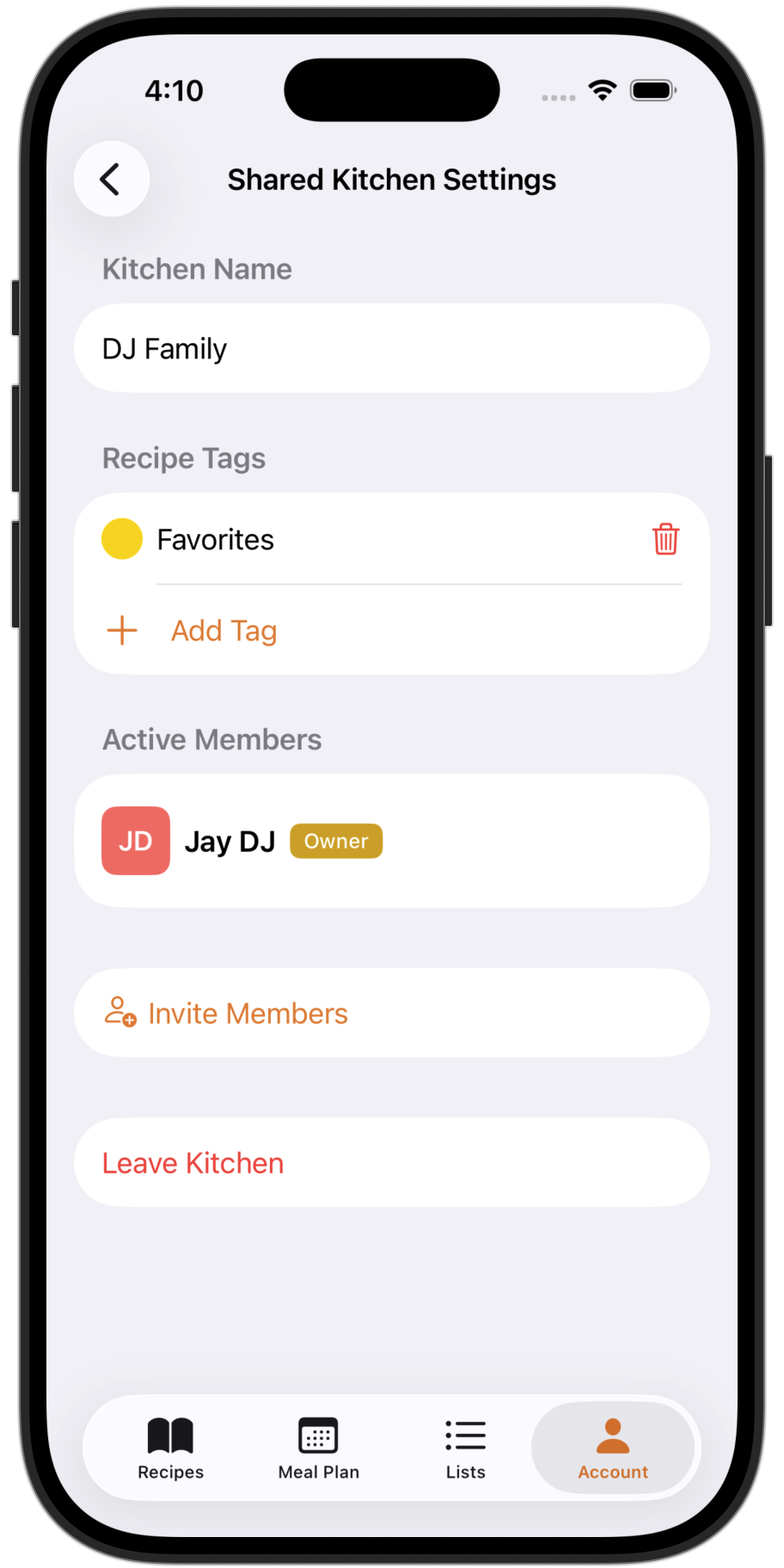
Go to Account → Kitchen Settings
Tap on your Shared Kitchen
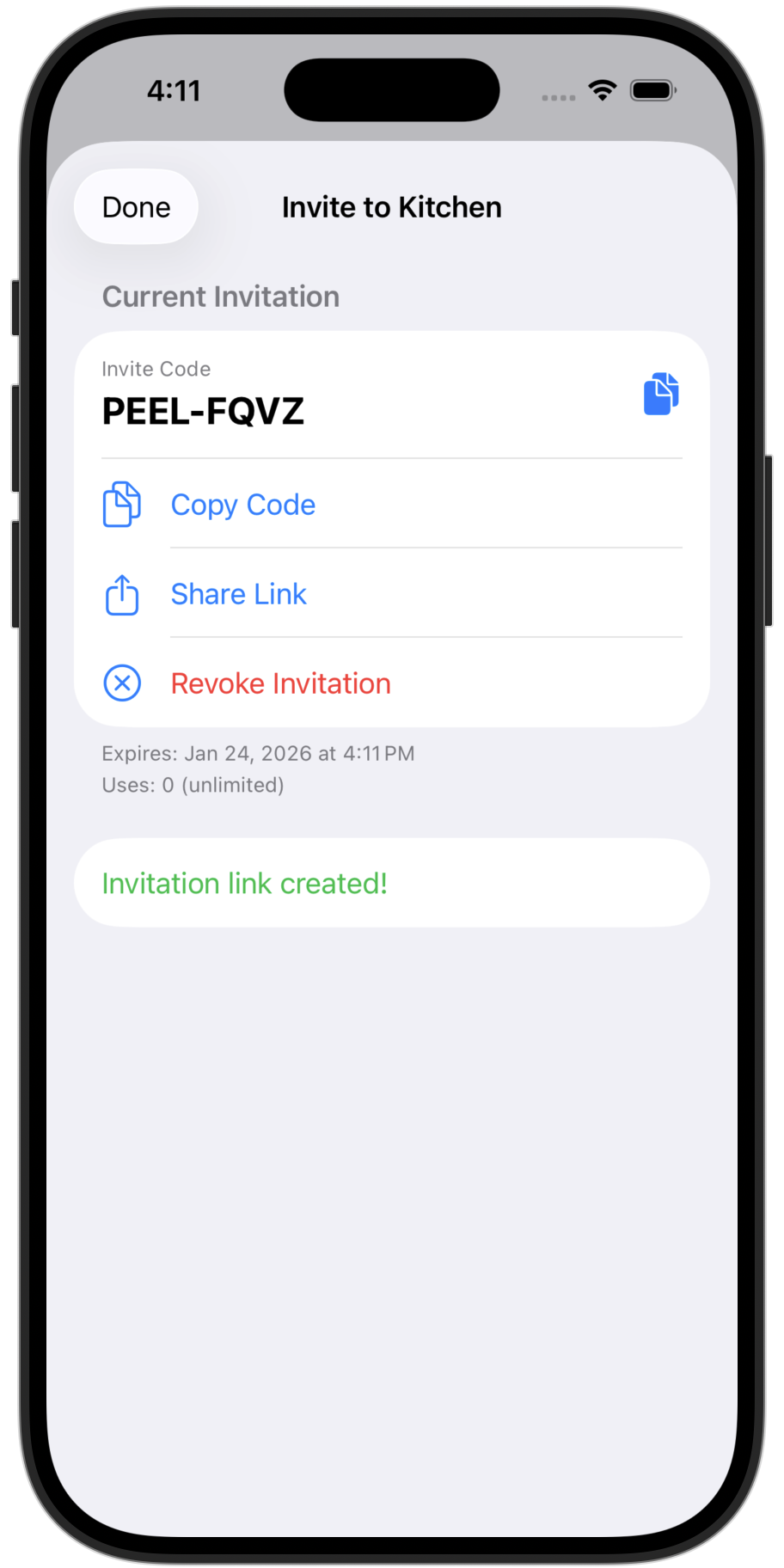
Tap "Invite Members" to generate a code like PEEL-AB12
Share the code via text, email, or AirDrop
Invite codes expire: Codes are valid for 7 days. After that, generate a new one.
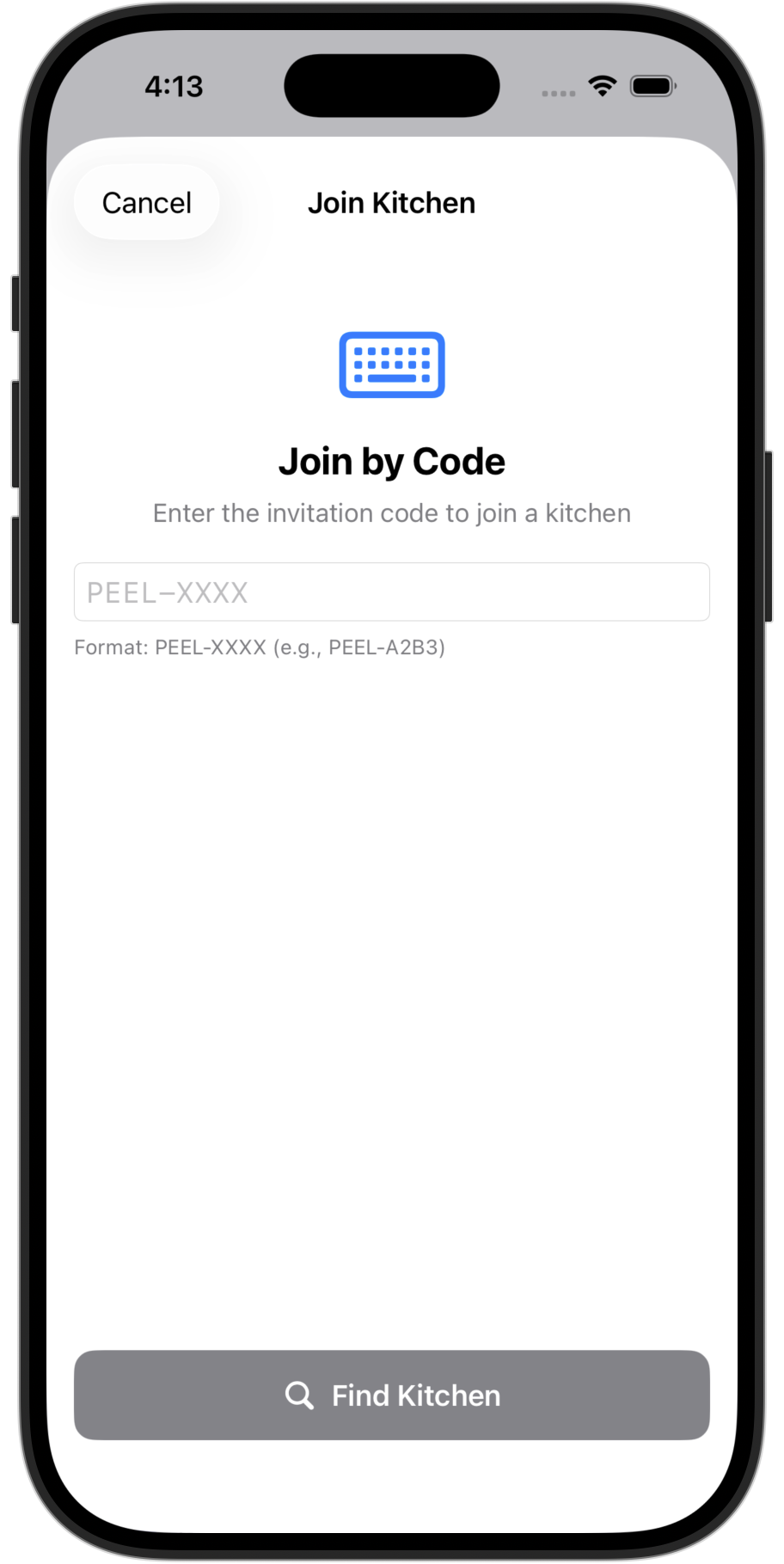
Joining a Kitchen
If someone shared an invite code with you:
Open Peel (create an account first if new)
Go to Account → Kitchen Settings → "Join a Kitchen"
Enter the code and tap Join
You're in! You'll immediately see all shared recipes.
Switching Kitchens
If you have access to multiple kitchens (Personal + Shared), switch between them:
Go to Account → Kitchen Settings
Tap the kitchen you want to switch to
Archived Kitchens: If you leave a Shared Kitchen, it becomes "archived." You can still view the recipes (read-only) but won't receive new updates.