To switch from Mealime to Peel, start with a few meals you want to cook, group them into one flexible plan, then sync the ingredients you need to one grocery list. Peel combines quantities and organizes that list by category. Shop for the group, then choose what to cook when you're ready. This guide helps you build a first week in Peel; it does not transfer your Mealime account or recipe collection.
Pick the meals you want. Get one grocery list. Decide what to cook when you're ready.
Mealime will close on October 21, 2026. Its team says the full recipe catalog will remain available through Meals Hub in Albertsons Companies apps, so keeping those recipes does not require moving to Peel. See Mealime's official announcement. If you are still choosing an app, read our Mealime alternatives guide, Peel vs. Mealime comparison, or broader Yummly alternatives guide first.
Already interested in Peel? Try the actual dinner-to-shopping routine before rebuilding an entire recipe collection. Meal planning and grocery lists are free, and you don't need an account to start on your iPhone.
Switch from Mealime to Peel in five steps
1. Choose how many meals you actually need
Start with the nights you expect to cook. If you have dinner out planned and expect leftovers twice, you might need four meals, not seven. Breakfasts you already have covered don't need to become a new project just because you're trying an app.
For an illustrative four-meal week, you could choose a familiar pasta, a bean skillet, a rice bowl, and a soup. Those are meal ideas, not promised recipe titles in Peel's starter collection. Pick versions your household actually likes, with at least one easy option for a tired evening.
Four meals is a manageable test. You can judge the planning and grocery experience without spending your Sunday filling a new digital cookbook.
2. Start with recipes you can cook this week
Peel includes starter recipes and meal plans, so you have something to work with when you first open it. Look through those before importing anything. If they suit your week, use them. If they don't, bring in a few recipes from websites you already trust: paste a recipe link and Peel saves the recipe without the surrounding page clutter.
Unlimited web imports and recipe storage are free. Recipes from TikTok, Instagram, or YouTube can also join your collection, using free import credits that refresh every week. Premium makes those social imports unlimited. A social import is optional for this first-week exercise, not a prerequisite.
I built Peel to be the gathering place for recipes my family finds in different places. Getting those recipes into one kitchen mattered to me more than building a large content catalog first. That choice means you can plan a website recipe alongside a creator's dish, but Peel is not a replacement source for Mealime's entire library.
Before planning, check each recipe's ingredients and serving count. Scale it for the people eating, including any portions you deliberately want left over. Correct an imported quantity if it doesn't match the original recipe. That makes the shopping review easier later.
3. Group the meals into one flexible plan
Add your chosen recipes to a meal plan. Think of this as a group of meals you're preparing to shop for, not a requirement to assign pasta to Monday. You can name your plan something recognizable, such as “Weeknight favorites,” and keep it in your Meal Plan Library.
A recipe collection organizes recipes you might use someday. A meal plan groups the ones you're preparing to cook together now. That distinction is what connects a saved recipe to a grocery trip.
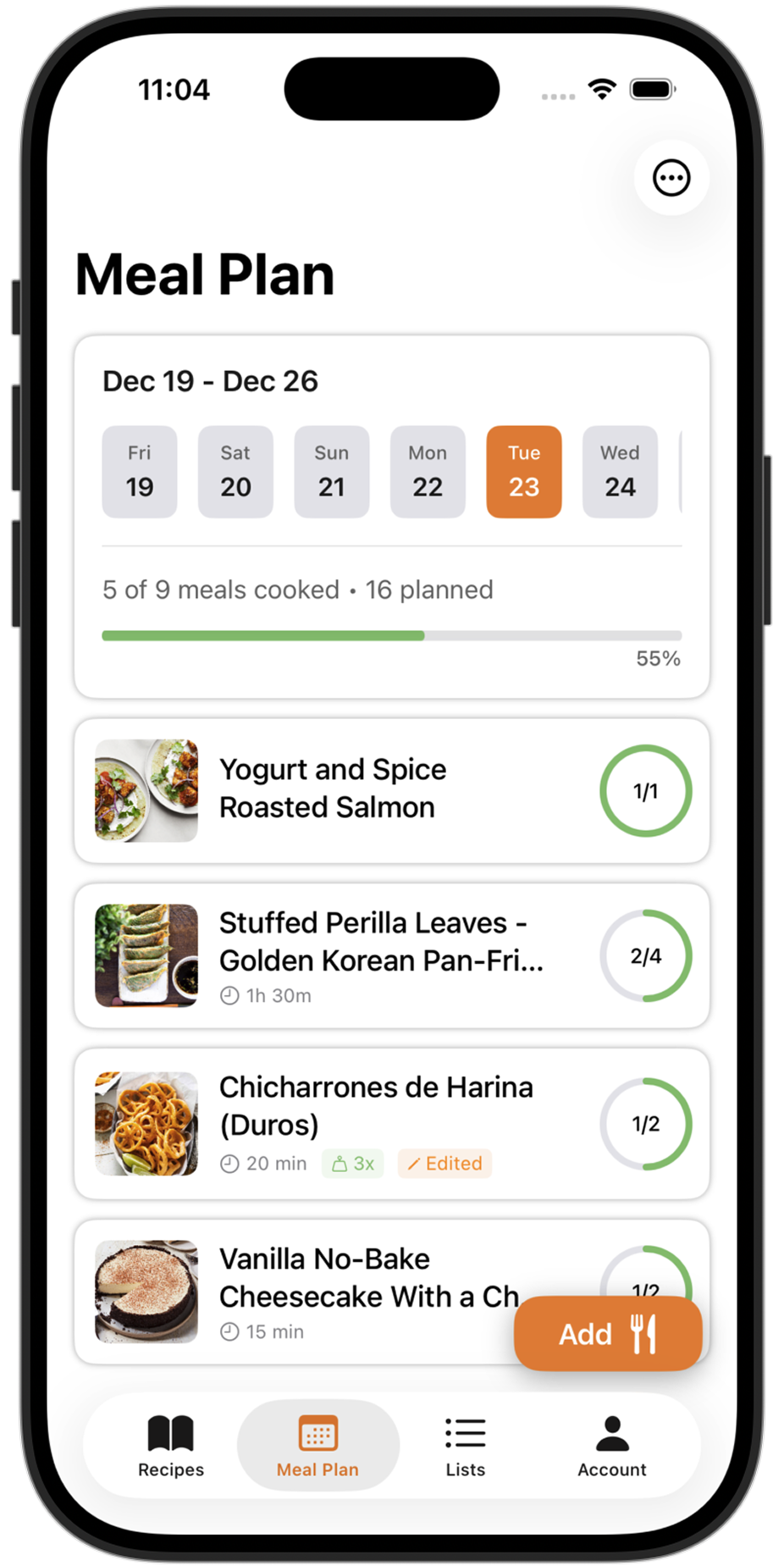
I built the pool because a day-by-day schedule kept falling apart when our plans changed. We'd go out unexpectedly, and suddenly an ordinary change felt like failing the plan. Grouping meals lets you shop ahead while leaving the order open. It doesn't eliminate decisions; it moves most of the work to the point when you choose the group.
4. Generate one grocery list for the group
With recipes in your pool, use Sync to Grocery List to review their ingredients together. Select the items you need, then sync them in one go. You choose when this happens; simply adding a recipe to the meal plan does not automatically add its ingredients to your shopping list. The meal-planning support guide explains the controls.
Peel turns your meal plan into a shopping list that aggregates quantities and organizes by category. Instead of copying ingredients from four separate recipes, you work from one combined list. Review the quantities and units, compare with what's already in your kitchen, and leave out ingredients you don't need to buy.
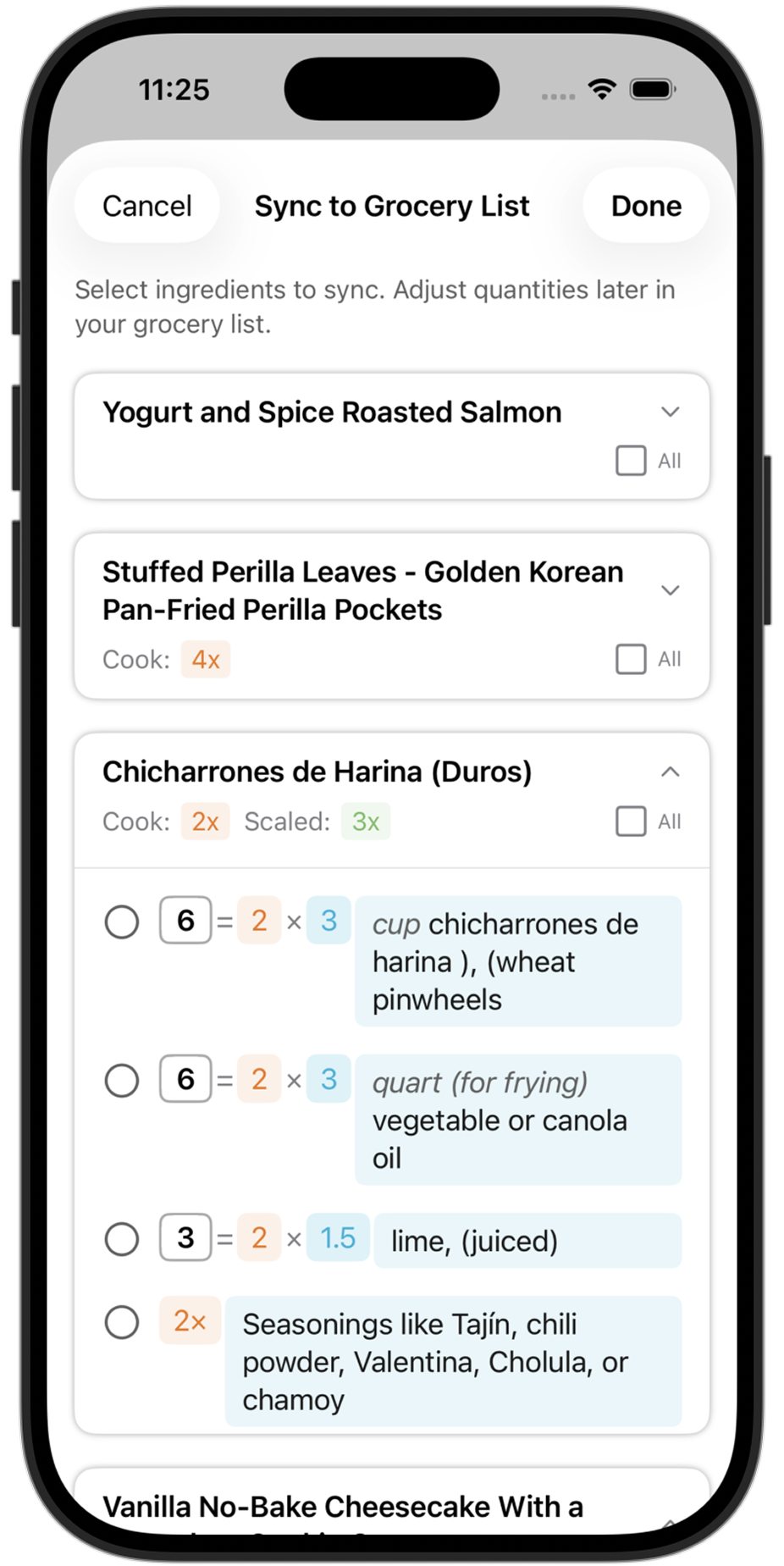
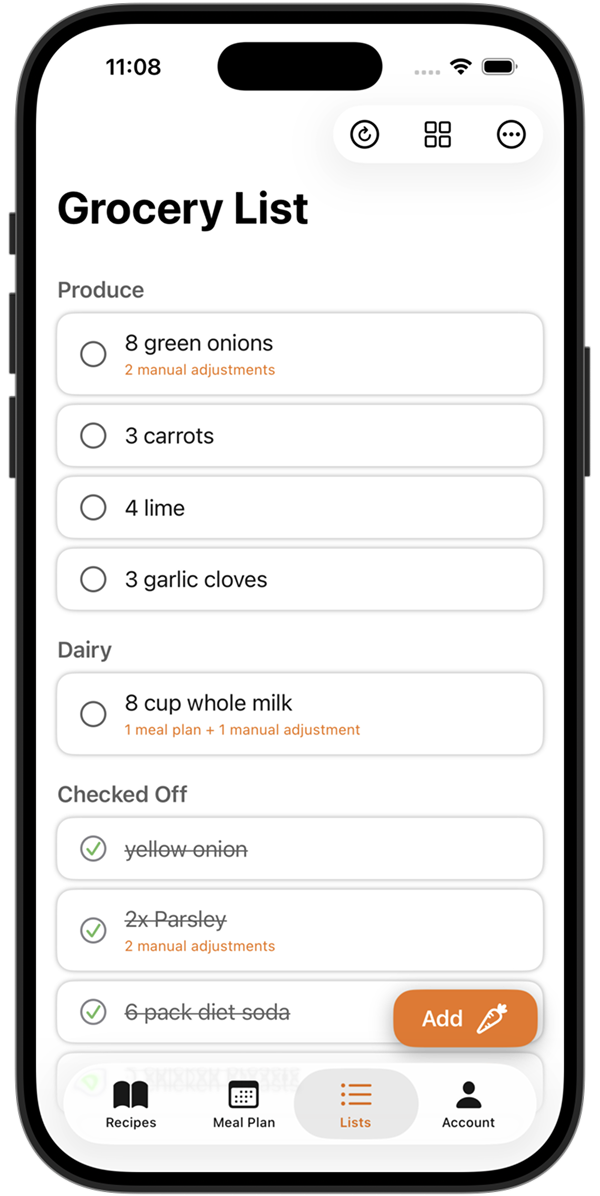
These are existing Peel interface examples, not a recorded run of the illustrative four-meal week above. Screens may look different in the current app version.
This is the moment to evaluate: can you look at one list and understand what to buy for your meals? If a quantity seems off, check it against the recipe before shopping. Grocery aggregation is useful, but it doesn't remove the need to review your ingredients.
5. Cook from the pool, then reuse what worked
After shopping, choose from the group when you're ready to cook. Want the easy pasta tonight? Make it. Have more energy tomorrow? Choose the recipe that needs more preparation. Use more perishable ingredients earlier in the week.
At the end of the week, look at the meals you enjoyed and the groceries you didn't use. Keep the useful combination as a saved plan and reuse it as a template. Swap what didn't fit, adjust the quantities, and review the next shopping list before syncing ingredients again.
Your next week can start with a plan you already know.
What to expect when you switch from Mealime to Peel
The familiar part is choosing meals and shopping from a combined list. Peel's strength is keeping your own recipes together in reusable, flexible plans. The biggest adjustment may be where your next dinner idea comes from.
Starter options help you begin, but Peel does not offer Mealime's large, professionally developed recipe catalog. It supports recipe search by diet and serving scaling; that is not the same as personalized allergy and dislike filtering, and Peel does not provide nutritional tracking. It runs on iPhone and iPad, with no Android or web app.
If those differences fit your household, test one grocery trip and a few dinners before moving more recipes. If you mainly want an app to supply new recipes for you every week, revisit the alternatives comparison. A useful first week is a better reason to stay than having already spent hours setting up.
Questions about your first week
Can Peel make one grocery list from several meals?
Do I have to assign meals to particular days?
Can I try the first week without Premium?
Where do my first recipes come from?
Can Peel replace Mealime's dietary recommendations?
Start with the meals you want to eat this week. Group them, review one grocery list, and cook from the pool. If that routine makes dinner easier, keep the plan and build from there.
Last updated: September 14, 2026